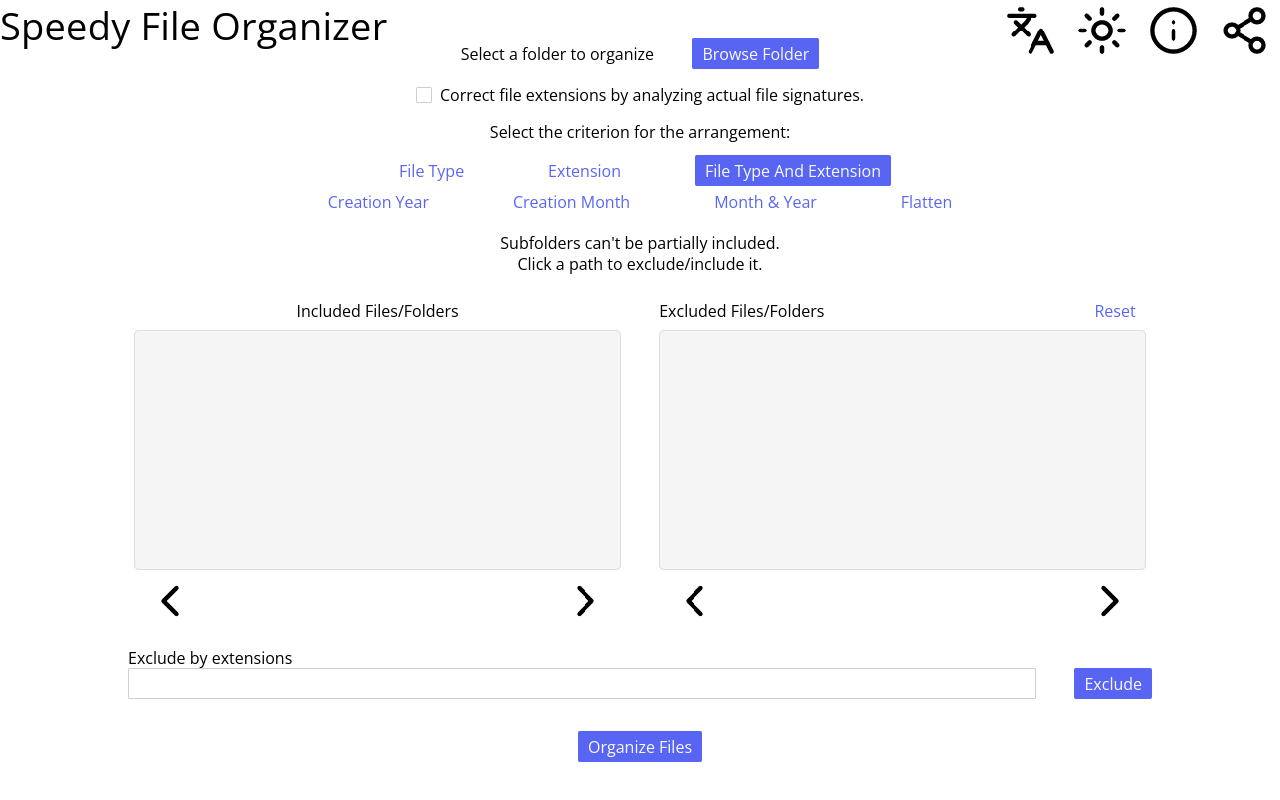
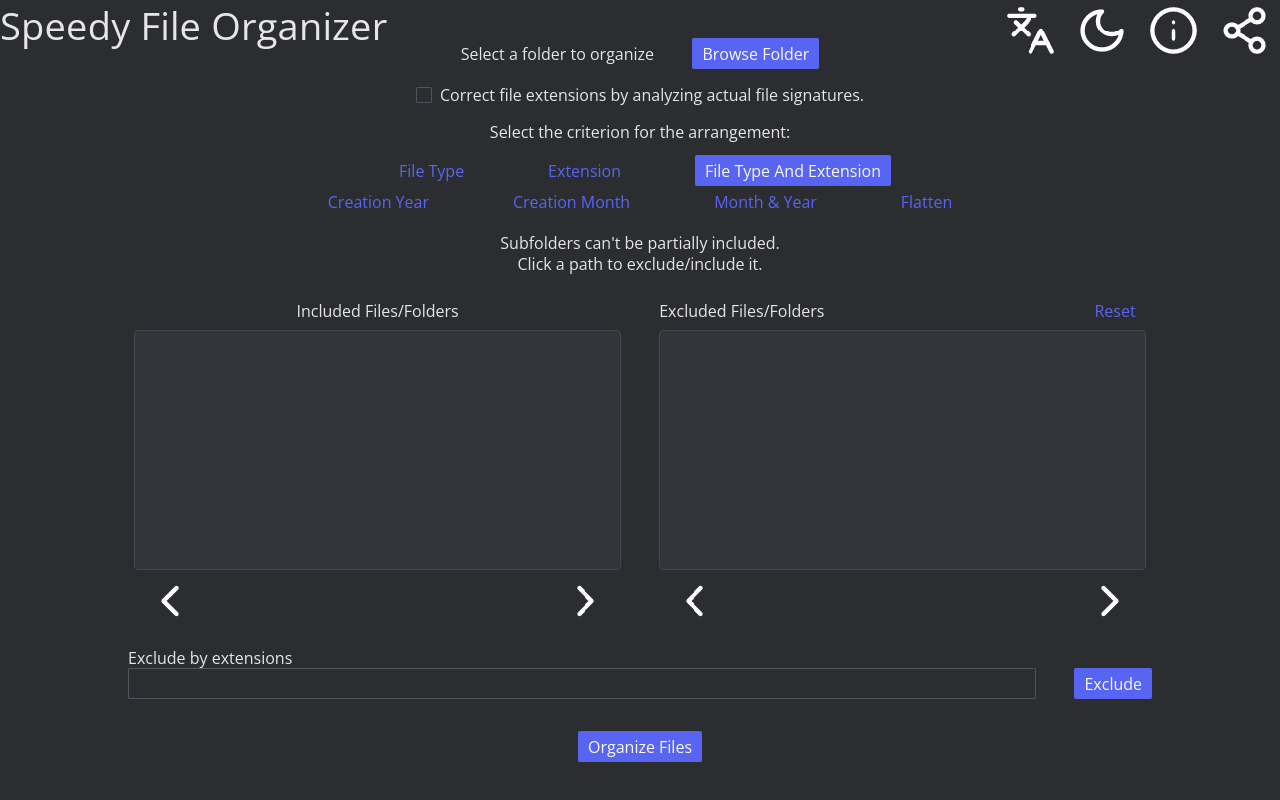
Speedy File Organizer
A downloadable tool for Windows and Linux
Please prefer the Microsoft Store for downloading on Windows. This package is unsigned.
The macOS package is broken. Apologies for the inconvenience.
Download
Install instructions
Installing filesorg on macOS
Step 1: Download and Extract
- Download
filesorg.zipfrom the download page - Your browser will automatically extract it, or double-click the ZIP file to extract
- You should now see a folder named
filesorg.app
Step 2: Move to Applications Folder (Optional but Recommended)
- Open Finder
- Locate the
filesorg.appfolder - Drag
filesorg.appto your Applications folder- You can find Applications in the Finder sidebar, or press
Cmd + Shift + A
- You can find Applications in the Finder sidebar, or press
This makes filesorg easier to find and launch.
Step 3: Run the App
If you moved it to Applications:
- Open Spotlight (press
Cmd + Space) - Type
filesorgand press Enter
Or from anywhere:
- Double-click
filesorg.app
Step 4: Security Warning (First Time Only)
When you first launch filesorg, macOS will show a warning: "filesorg cannot be opened because it is from an unidentified developer."
This is normal for unsigned apps. To proceed:
- Click Cancel (don't worry, this closes the warning, not the installation)
- Open System Settings → Privacy & Security
- Scroll down to find the message about filesorg
- Click Open Anyway
- When prompted again, click Open
The app will now launch. This security check only happens once.
Troubleshooting
"filesorg is damaged and can't be opened"
- This shouldn't happen, but if it does, try re-extracting the ZIP file
Can't find the security warning in Settings
- Try double-clicking
filesorg.appagain and look for the warning dialog
Uninstalling
Simply delete filesorg.app from your Applications folder (or wherever you placed it).
Also available on